

Charging Your Phone, Your Way… But Without IFTTT
v1.0 (12 Aug): First publish.v0.2 (11 Aug): Optimised my macros as a part of debugging.October 2025: a bit more than a year and a half after I revised my smart plug charging solution, things started to become increasingly unreliable again. This was because WeMo, the manufacturer of said plug, was winding down its entire service for good in February 2026.
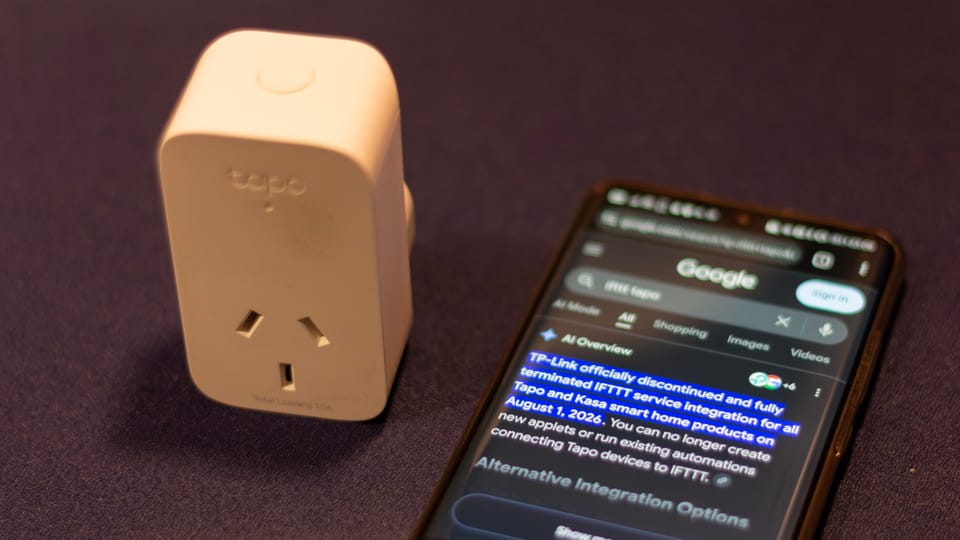
Knowing that the smart plug was soon going to turn into an oversized regular plug just like that,[1] I went to Bunnings to get a cheap Tapo one – the P110M (Bunnings) to be exact – for a fraction of the price of the WeMo.
Why was there a “revised” solution? Well, my first solution involved a certain process – pinging a signal (API request) to automation middleman service IFTTT – that they decided to put behind a 💰wall after a few years.
Luckily, my revised solution made use of a different IFTTT feature, where it instead looks out for certain keywords of my choice in the phone’s notifications, which I can create.
It was a relative easy fix. The solution mostly remained the same; it’s just that I now make and dismiss notifications instead of sending API requests.
That did the job, until I realised around the start of this month (August 2026) my smart plug wouldn’t switch on or off. IFTTT didn’t report any issues or notify me through email that my solution shut itself down from failing too many times.
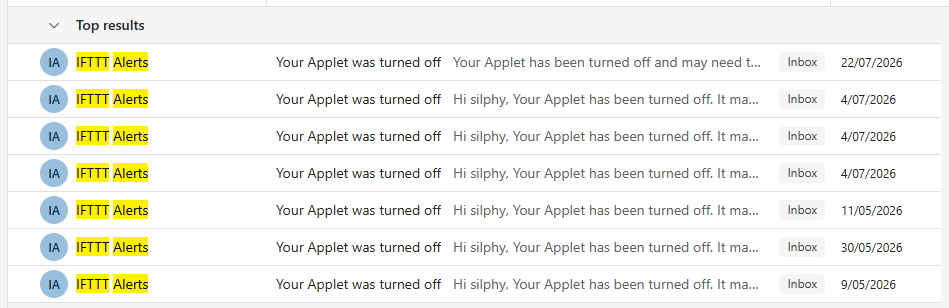
Wondering what was up, I did a brief search for tapo ifttt on Google – and lo and behold, the very first link:
We regret to inform you that IFTTT services will be discontinued for Tapo and Kasa smart home products according to the following timeline:
• August 1, 2026: Full termination of IFTTT services.
…Fooled me twice.[2]
Scouting the Alternative
Alright, let’s see what our options were.
Apps
First, IFTTT is deaded – we can’t use it at all. And no, we are not buying another plug that works with it.
TP-Link suggested that we use their own in-built Tapo app’s Smart Actions to create automations. Unfortunately, their triggers are very limited: you have a choice between time of day, arriving or leaving home, or the status changes (👀)… of the plug (😪), not the phone.
My next thought: could we ping Tapo’s cloud servers to toggle the switch of the smart plug? Like, that’s what IFTTT does, so why couldn’t we just do it ourselves? Again, a brief search on Google suggests TP-Link doesn’t have such a thing.
During that search, the ever-prominent, nobody-asked-for-it Gemini suggestions tipped an additional two solutions: let Google Home trigger it, or program the taps required to open Tapo and switch the plug on and off.
Both of these options won’t work because:
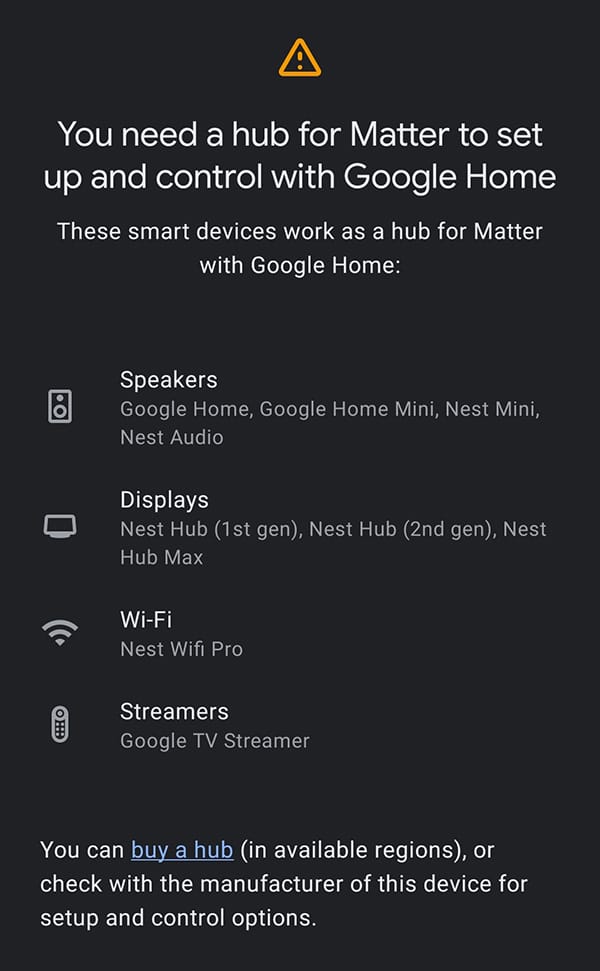
- To add the plug to Google Home in the first place, I need to purchase a Matter compatible hub (??¿)
- Don’t get me started on trying to cover all the hurdles that can happen with programming user inputs. Combine that with the phone’s locked state, or when a call arrives, or some other interruption occurs – nightmare.
Home Assistant
Then, I recall my friend using Home Assistant (“HA”) as her household’s smart home ecosystem. She has quite a collection of smart plugs and lights, temperature sensors, air treatment, and a camera that you can check the feed of.[3]
The issue is that Home Assistant needs to be hosted on its own device, such as:
- A small PC, like a NUC (💰)
- …or a Raspberry Pi (viable, but do I really need it 🤔)
- An old PC to be reused that’s otherwise sitting around doing nothing (power bill wise, relatively 💰. Also, my old PCs are OLD = aren’t 64-bit)
- Home Assistant’s own kit (…💰).
I have the Android phone itself already, and I certainly don’t need more e-waste lying around – so why can’t I just install HA on it via Termux? Turns out doing so isn’t officially supported because it’s not “meant” to be run on a system like that, so the consensus is that it’s just not recommended. There’s too many issues and complications for it to be worth the hassle.[4]
Sure, HA is a very powerful solution that will no doubt become useful in a smart home ecosystem, but just to simply keep a phone battery level between A and B? It sounds so roundabout. And overkill. And – let’s not forget – antithetical to my original purpose of requiring the solution to be as close to free as possible.
Any sort of API?
Yes, Tapo cloud APIs may not publically exist, but someone has reverse engineered the plug’s local API through looking at the code of the Tapo app. After all, the plug is able to function even without the Internet, so there must be some sort of local communication going on.
A GitHub repo, tapo-rest, wraps an unofficial API into a REST service. The idea is that, just like with my first WeMo solution, the automation app pings a URL (in our current case, something like http://localhost:<port>/on) and it should switch the plug on or off.
The Git repo has the source code, so theoretically we should be able to build it and run it. In this case, we would be looking to build it on the phone itself in Termux.
…You know what? I think this might be it.
Making It Happen
The main goal is that you’re looking for an API, be it official or not, to enable local (or online) communication with the smart device.
Setup
Firstly, in the Tapo app, enable third-party compatibility by selecting Me in the bottom navigation bar → Third-Party Services in the Services section → switch Third-Party Compatibility on.
Then, on the phone itself, install Termux through F-Droid. Do the usual package update before installing Rust (what tapo-rest is built in). We’ll also install:
gitso that we canpullthe repository’s source codevimbecause I’m just more used to it thannanoopensshso you can remotely access Termux and make use of a more polished client like Termius (Termux looks fugly on the motorola). I won’t cover how to set up SSH here, but there’s nothing different about it in Termux versus any other distro. Everything Just Works™termux-servicesbased on post-install recommendation for SSHtermux-api(maybe?) andnmapto help us programmatically determine the IP address of our plug. More on that later
Then, once we’ve cloned the repo, let’s cd into the folder it made and build it with cargo. I built for release, so the executable should be in target/release/tapo-rest – feel free to move/copy that out into the project folder.
pkg update
apt upgrade
pkg install rust git vim openssh termux-services termux-api nmap
git clone https://github.com/ClementNerma/tapo-rest
cd tapo-rest
cargo build --release
The instructions on the repo states we need to create a configuration file that looks something like the following. I named mine config.json.
{
  "tapo_credentials": {
    "email": "<tapo email account>",
    "password": "<tapo account password>"
  },
  "server_password": "automation-lmao",
  "devices": [
    {
      "name": "plug",
      "device_type": "P110M",
      "ip_addr": "<plug's local IP address>"
    }
  ]
}
The server_password is just a password to restrict access to this API if you do intend to serve it over a network – in which case, you should probably put the API behind a proxy that can sort out SSL for you, ensuring the password isn’t sent in plaintext. However, this is Termux on the same device, so the password doesn’t have to meet security requirements.
devices allows you to specify all the Tapo devices you have. I only have the plug itself, so it’s just one entry. Of course, if your device isn’t a P110M, specify the right one. (The repository’s readme specifies its supported devices.)
An easy way to find the ip_addr of the plug is to go into the Tapo app, select the plug, then tap the settings cog in the top right → Device Info.
For me, that’s a maintenance hurdle because my phone’s hotspot changes its IP subnet every time the phone reboots (i.e. the smart plug didn’t switch on for some reason and let the battery go flat). That would require me to update this config file to reflect the correct IP – which I manually have to do, or use some extra brain work to automate. But hey, at least the config lives on the same device as the hotspot.
Testing the API
To run tapo-rest, you specify the port number and the config file. You may optionally specify a verbosity level to see what it’s doing.
$ ./tapo-rest -p 4489 -v debug config.json
Now launching server...
Attempting to connect to the 1 configured device(s)...
Device url: http://10.172.69.69/app
Testing the AES protocol...
Component negotiation request: {"method":"component_nego","params":null}
starting new connection 'Some("10.172.69.69")'
Device responded with: TapoResponse { error_code: 1003, result: None }
Not supported. Setting up the KLAP protocol...
Performing handshake1...
Handshake1 OK
Performing handshake2...
Handshake2 OK
Established a connection with device 'plug'!
|> Device plug connected successfully!
Launching server on 0.0.0.0:4489...
To see the list of all available actions, check 0.0.0.0:4489/actions
Feel free to go to localhost:<port>/actions on the phone’s browser to see the endpoint commands available that you can control your device with.
In Termux, open a new session. The keyboard shortcut is Ctrl+Alt+C, or alternatively swipe across from the left side of the app window and select New Session. (The keyboard might come in handy if you use the screen edge gesture as the back button. I know, I know, who out there uses a keyboard for a phone?)
$ curl --json '{"password": "potatoes"}' http://localhost:4489/login
<alphanumeric token id>

$ curl -i -H 'Authorization: Bearer <token id>' 'http://localhost:4489/actions/p110m/on?device=plug'
HTTP/1.1 200 OK
access-control-allow-origin: *
content-length: 0
date: Sat, 08 Aug 2026 10:00:00 GMT

$ curl -i -H 'Authorization: Bearer <token id>' 'http://localhost:4489/refresh-session?device=plug'
HTTP/1.1 200 OK
access-control-allow-origin: *
content-length: 0
date: Sat, 08 Aug 2026 10:00:00 GMT
Again, instructions in the repository, but the main two steps are:
- POST a JSON request with the password you set in the config file to the
loginendpoint. (potatoesis apparently the default.) The server will return a response with a token ID. Keep a note of this token ID; you’ll be using it a lot. - GET request, including your authorisation token in the headers, one of the commands from
/actionsto send to the device. Specify the device name you set in the config. - Side note: Every action requires that authorisation token, which persists. However, the device that is associated with the token expires after a while. You can refresh it by pinging
refresh-sessionas per above, keeping in mind the URL path.
If all goes correctly, sending the GET request to /on or /off should immediately switch the plug on and off 🪄 look ma, no IFTTT!
Bro really told me to fork out more money 🤦
MacroDroid
The automation app that I use to detect the phone’s battery level and fire off actions is called MacroDroid, which is free (as in “get barraged with ads” free). They can get pretty annoying when you’re trying to put together and debug your macros, but you should be able to mitigate that by using an adblocker or just disconnecting from the Internet.
The logic is mostly the same as the first solution (i.e. simpler than the second), where you’re sending an HTTP request to change the state of the plug. Except this time, you can even forgo needing connectivity sanity checks, save for ensuring tapo-rest is running, since you’re not dealing with the Internet any more.
Global variables
First, we need to store our tapo-rest key – the random bunch of letters and numbers. Save this as a global variable (I’ll name mine tapoApiKey) in MacroDroid, setting the Make variable secure checkbox on whilst we’re at it.
All other variables like the port number and plug name should also be here to reduce repetition, but I’d rather keep them as local variables in their own macros.
Reusable snippets
Now, let’s create some action blocks (basically the MacroDroid equivalent of functions) that we’ll use in all three of the [off when done], [on when low], and [off when plugged in above threshold] macros.
refreshTokenis the session refresh thing (point 3 above).- (Optional)
statusCheckgoes to/devices, just a sample endpoint I picked that simply tests if the authorisation token is functioning properly.v0.2Edit: You actually don’t have to make this function.refreshTokennot successfully completing is already enough of a reason for manual intervention.
In pseudocode (screenshots below):
// Variables specified in parentheses here are input variables with their defaults
function refreshToken(string deviceName = "plug", int tapoApiPort = 4489) {
  int result // Output variable
  http("http://localhost:{lv=tapoApiPort}/refresh-session?device={lv=deviceName}", {
    requestMethod: GET,
    saveHttpReturn: result,
    headerParams: [
      "Authorization": "Bearer {v=tapoApiKey}"
    ]
  })
  return result
}

function statusCheck(int tapoApiPort = 4489) {
  http("http://localhost:{lv=tapoApiPort}/devices"), {
    requestMethod: GET,
    saveHttpReturn: result,
    headerParams: [
      "Authorization": "Bearer {v=tapoApiKey}"
    ]
  })
  return result
}
Then, our macros. Here’s the one for when the battery goes above a certain level:
var plugName = "plug"
var refreshCode = 0
var tapoApiPort = 4489
// var resultCode = 0

do while ("Power Connected") {
  screenOn()
  wait(3)
  // The output variable = action block, enable blocking until complete, the function, the input variables
  refreshCode = ACTION(block = true, refreshToken(plugName, tapoApiPort))
  // [v0.2] resultCode is kinda not necessary.
  // resultCode = ACTION(block = true, statusCheck(tapoApiPort))
  if (refreshCode == 200) {
    wait(3)
    http("http://localhost:{lv=tapoApiPort}/actions/p110m/off?device={lv=plugName}", {
      headerParams: [
        "Authorization": "Bearer {v=tapoApiKey}"
      ]
    })
    wait(30)
    if ("Power Connected") {
      logGeneral("[!] Plug still on after 30s")
      notification("Plug didn't turn off automatically")
    }
  }
  /*
  else {
    // Log/send a notification that refreshing token didn't work
  }
  */
}

logGeneral("[✓] Turned switch off")
The code for when the battery goes below a certain level is mostly the same, save for inverting the off/on checks and power connected states. You may also wish to add a Screen On action just after the do/while block in case the phone’s power saving functionality prevents the macro from running on low battery when the screen is off (which I vaguely remember was a thing).
The code for plugging in the phone whilst above a certain threshold was identical to the code above – just the triggers and constraints change.
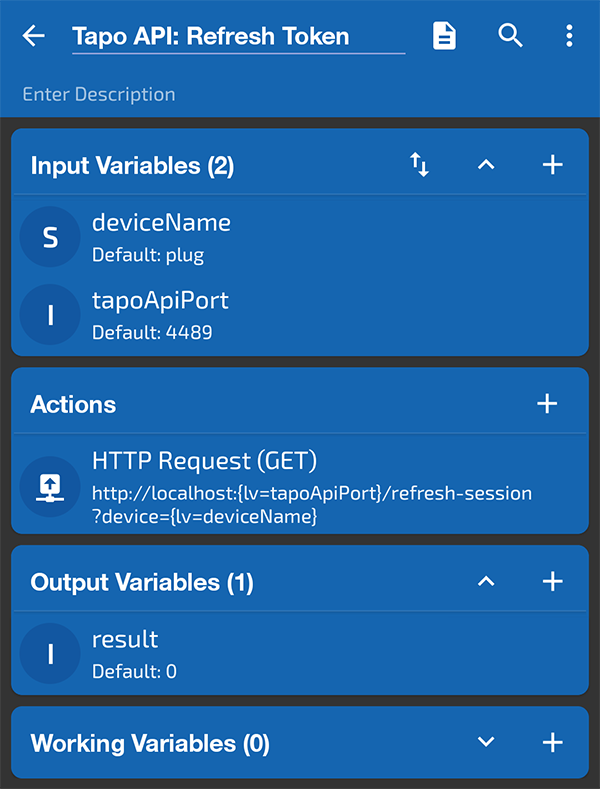
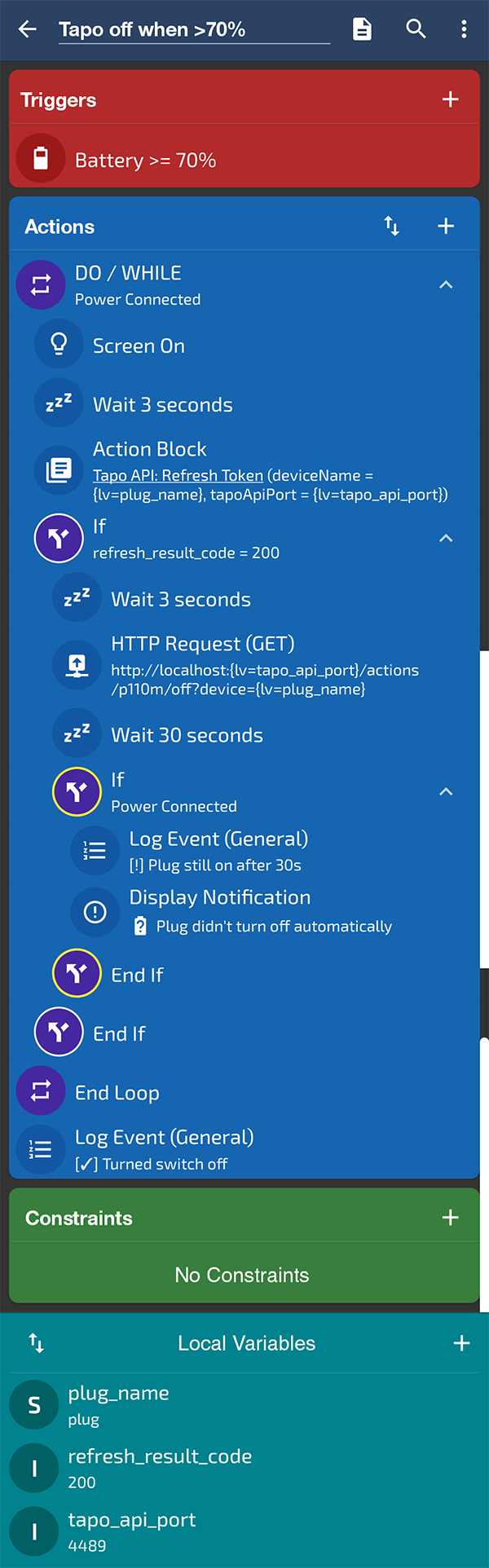
note: refresh_result_code here is 200 because it’s already been run before. when fresh, it’ll be 0
Steel Thread Complete?
With tapo-post running and the macros set up, this should be sufficient to keep the phone in a charging loop.
As it should be, without the wait commands, switching the charger’s state was blazingly fast. I use AccuBattery to ring an alarm when the charge reaches the target, just in case the smart plug fails to switch off. This way, I can manually unplug it.
But to hear the distinctive click of the smart plug before the alarm can sound, and as a result get interrupted, is very new to me!
But it is a fragile steel thread; I can foretell a few situational cases that could easily break the loop. However, I do have solutions in mind.
Booting up in the first place
With all those commands we were manually running, the next step is to put them into a batch script so it runs at the time the phone starts. Automation means very little if there’s human intervention.
There’s a package in F-Droid for Termux simply named Boot, which allows it to be run as a system service = starts on boot. You can then put any scripts you want to run at that time into a folder that Termux will go through.
…But not too soon
A phone was not designed to be a replacement router by proxy of a 24/7 hotspot. Under “normal” use and with consideration for battery usage, it’s common practice for hotspots to be default switched off when the phone boots up.
The issue is that startup solution requires the hotspot to be running to establish a connection with the plug – and so it will fail out if the hotspot isn’t switched on before the script runs (very likely), or I outright forget to do it.
Due to Android’s security policies, you can’t automate switching on the hotspot on boot without using a third-party app and first connecting to a Wi-Fi network. That’s obviously pointless; the whole premise of this portable hotspot thing is because the phone is supposed to be the Wi-Fi 🤣
So, we have two choices with our boot script:
- Wrap the script in a loop, only exiting once the script has established a connection to the plug.
- Start the script manually.
I’m going to go with #2 because sometimes I don’t want to start the hotspot immediately and let the script loop unnecessarily waiting for it to happen. And, if I need to manually turn on the hotspot anyways, it doesn’t take that much extra effort to go into Termux and run the script. Just save me from having to look for the plug’s IP and vimming in to Termux to modify the config file…
IP changes
So what does this script to handle IP changes look like? With the additional assumption that the hotspot is on, I can’t exactly edit config.json to reflect the IP change if I don’t readily know what the IP address is in the first place.
Whilst there is a way to scan what is connected to the mobile hotspot and get back a list of IPs, there doesn’t seem to be a way to identify them. However, I did notice that by visiting the IP address of the smart plug in the browser, a simple “200 OK” is returned. That’s a web page – and a web page means port 80 (just HTTP, not HTTPS) on the plug is open.
Sure, the plug may not necessarily be the only device to have port 80 open. You might be a web developer testing a website on your device that you’ve allowed access to on the network. But I’m pretty sure a home page won’t be displaying the exact text “200 OK”. And so, we can make that our criteria.
We’ll use nmap to scan what’s connected to the hotspot, outputting things in a searchable, greppable format (-oG) to the terminal (-), and then do said grep with the word open.
$ nmap -p 80 10.172.69.0/24 -oG - | grep open
Host: 10.172.69.69 ()    Ports: 80/open/tcp//http///
But you might ask, “How did you know the address was 10.172.69.0/24?”
That’s a good question. I cheated; I already knew it: remember the Tapo app? Unfortunately, because this is automation, we can’t take “I had to open Tapo” (or going into the hotspot settings, etc) as an answer.
Here’s where a good ol’ ifconfig can help us actually find out what it is.
$ ifconfig
Warning: cannot open /proc/net/dev (Permission denied). Limited output.
ap_br_wlan2: flags=4163<UP,BROADCAST,RUNNING,MULTICAST>  mtu 1500
        inet 10.172.69.65  netmask 255.255.255.0  broadcast 10.172.69.255
        unspec 00-00-00-00-00-00-00-00-00-00-00-00-00-00-00-00  txqueuelen 1000  (UNSPEC)

lo: flags=73<UP,LOOPBACK,RUNNING>  mtu 65536
        inet 127.0.0.1  netmask 255.0.0.0
        unspec 00-00-00-00-00-00-00-00-00-00-00-00-00-00-00-00  txqueuelen 1000  (UNSPEC)

rmnet_data4: flags=65<UP,RUNNING>  mtu 1456
        inet 192.0.0.2  netmask 255.255.255.224
        unspec 00-00-00-00-00-00-00-00-00-00-00-00-00-00-00-00  txqueuelen 1000  (UNSPEC)
Whilst I don’t know how this motorola phone does its DHCP, I do know that it always starts with 10.172 and assigns a /24 (aka netmask 255.255.255.0) subnet. In other words, only the last number can be safely ignored.[5]
So it’s really just figuring out the third octet/number… and the ifconfig output you see there gives you the answer.
Now, we just have to isolate that output to only the IP. What we want is the thing after inet (this itself counts as the first match, so the one ‘after’ is +1 = $2) and (&&) that it matches (~) what we want: a pattern that begins with 10.172. (^10\.172\.). As awk prints entire lines of matching searches, we only want that second thing ({print $2}). Putting it together:
$ ifconfig | awk '/inet / && $2 ~ /^10\.172\./ {print $2}'
10.172.69.65
Great. We have the address to our mobile hotspot. Not quite the plug, but that’s okay; the most important part of that IP address is the 69.
So, we strip off everything after the last dot (i.e. 65) and replace it with a .0/24 by sediting it.
!!is short for “previous command”; I’m just keeping it easy to follow.- “Everything after the last dot” can be expressed as “starting from the end (
$) include anything (*) that isn’t a dot ([^.])”. When it hits the dot, the search stops and the dot isn’t included.
Then, we plug that in to nmap and do what we need to isolate it back to just the plug’s IP address.
$ !! | sed 's/[^.]*$/0\/24/'
# <expands>
10.172.69.0/24

$ nmap -p 80 $(!!) -oG - | grep open | awk '/Host: / && $2 ~ /^10\.172\./ {print $2}
# <expands, it's pretty disgusting>
10.172.69.69
nice.
To ensure that this address actually is our plug, we can try to access it. One programmatical way to do this is to use curl, where -s is to suppress the progress text so we only see the response.
$ curl -s 10.172.69.69
<html><body><center>200 OK</center></body></html>
So, if we grep '200 OK', this line itself should be returned. If the command instead returns nothing because it can’t find that string, this isn’t our plug.
Provided this is the plug, we now have to update the address in the config file. sed can again be used here to help us do that.
-zchanges the input into one big block of text for the purposes of processing files with multiple lines.-ireplaces text in-place, i.e. instead of outputting the replacements to the terminal, it does the replacements in the file itself.-Eis to allow the regex expression to not require escaping certain characters.- The regex expression itself is just what an IP address is (1–3 digit numbers followed by a dot, three times, then another 1–3 digits).
- Of course, point the command to where your config is. I stored mine in the root of the
tapo-restfolder.
$ sed -z -i -E 's/([0-9]{1,3}\.){3}[0-9]{1,3}/10\.172\.69\.69/' $HOME/tapo-rest/config.jsonAnd with that, that should be every component ready to put together into a script.
The script
v0.2: I have yet to test this out in action, however each part has been confirmed to work.#!/data/data/com.termux/files/usr/bin/bash
# -- Determine hotspot IP --
hotspot_ip=$(ifconfig | awk '/inet / && $2 ~ /^10\.172\./ {print $2}')
if [ -z "$hotspot_ip" ]; then
echo "[!] Hotspot IP not detected. Has it been turned on?"
exit 1
else
echo "[+] Hotspot IP is $hotspot_ip"
fi
# -- Transform this into a subnet --
subnet=$(echo $hotspot_ip | sed 's/[^.]*$/0\/24/')
echo "[+] Subnet transformation is $subnet"
# -- Network map --
# List all IPs in the subnet that have port 80 open
mapfile -t device_ips < <(nmap -p 80 $subnet -oG - | grep 'open' | awk '/Host: / && $2 ~ /^10\.172\./ {print $2}')
found_ip=""
echo "[+] Found ${#device_ips[@]} potential plug IPs with open :80"
if [ ${#device_ips[@]} -eq 0 ]; then
echo "[!] Unable to find a :80 device open"
exit 1
fi
# Go through all the IPs for a "200 OK" response when accessed
# (This script will only choose the first occurrence)
for ip in "${device_ips[@]}"
do
echo "[+] Testing $ip..."
if [[ -n $(curl -s $ip | grep '200 OK') ]]; then
found_ip=$ip
echo "[+] Found a plug!"
break
fi
done
if [ -z "$found_ip" ]; then
echo "[!] Unable to find a :80 device open"
exit 1
fi
echo "[+] Using IP $found_ip"
# -- Replace the old IP in config with the new one --
sed -z -i -E "s/([0-9]{1,3}\.){3}[0-9]{1,3}/$found_ip/" $HOME/tapo-rest/config.json
# -- Run tapo-rest (or kill it and reboot if it's running) --
# You can instead use /reload-config but this requires a bearer token
run_command=$HOME/tapo-rest/tapo-rest -p 4489 $HOME/tapo-rest/config.json
if ! pgrep -x tapo-rest > /dev/null; then
$run_command
else
pkill -x tapo-rest
$run_command
fiSome things worth knowing in this script:
-zin an if statement means if the string is empty.-ntests if it’s not.- The
mapfilecommand savesnmap’s results into an array nameddevice_ips.- The next statement checks whether the length of this list is 0 (i.e. empty).
- The for loop that looks for a
200 OKwill setfound_ipto something if there’s a match. If by the end of the loopfound_ipis still empty, it means it wasn’t able to find a match.- If you do have more than one plug, the script can narrow down the IPs for them, but it can’t differentiate between one or the other unless you use other methods in
tapo-rest’s offerings to isolate them. Even if you are able to, you then have to ensure you’re replacing these IPs with the right ones in the config – and that’s another hurdle you need to deal with.
- If you do have more than one plug, the script can narrow down the IPs for them, but it can’t differentiate between one or the other unless you use other methods in
tapo-rest’s documentation states there is a/reload-configendpoint you can access to refresh the config without needing to restart. However, as this requires you to specify a bearer token, the less elegant method of restarting saves you the trouble of having to specify that token in the script.
[1] As in like how it’s kinda crazy that someone can remotely turn a thing you can physically hold in your hands into rubbish at the click of a button.
[2] (plus excerpt text): It’s a reference to the extension of a common phrase, “Fool me three times, shame on both of us.” Spending money again when this Tapo plug hasn’t even lasted a year is the last thing I’m gonna do.
[3] This was all secured behind a Tailscale instance, which she provisioned me access to during the time I was at hers for a few weeks to catsit.
Oh, she even has an automation set up where she’ll get a notification on her phone when the clothes dryer has finished running.
[4] There’s a more reliable, but funny way, to get HA running: install a distro like Ubuntu on the phone, then run the containerised version of HA in Docker. On an Android phone, btw.
[5] …I think it’s 10.172, but as I’m looking through the apps on my other devices, it turns out that 172 isn’t always 172. I guess I’ll find out if that’s the case the next time I need to restart my phone – but I’m very sure it always begins with a 10.